
Using Our Collections

Click 'Browse' in the navigation bar, which appears in the masthead, at the top of every page to access all available records.
Click the title or thumbnail from this list to navigate to your chosen record.
The 'Summary' tab provides a brief overview of the digitized item, including key fields, such as title, date, subject, and format, where relevant. The full metadata that appears beneath the viewer provides more details, such as descriptions and copyright information. Any metadata that appears within a gray bubble links to a list of all records cataloged with that term.
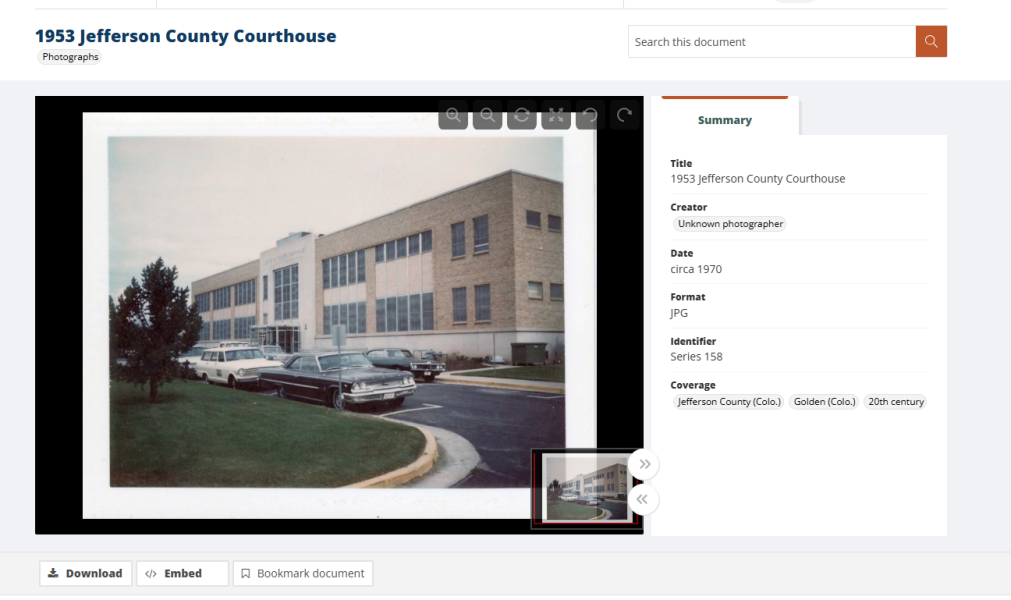
Hovering the cursor in the image viewer displays a menu with the following options in the top right of the viewing window:
- Zoom in or out
- Toggle full page view
- Rotate left or right
- Go home – resets the image to the default view
The dimensions of the image viewer can be toggled between full and half width using the arrows to the bottom right of the viewing window.
Click the “Download” button to open a pop-up window that allows you to save metadata and transcripts where available.
Select the "Embed" button to obtain a code to display the record elsewhere on another site using software such as an iFrame. Choose to include display of the Summary Metadata and/or Transcripts (where available), along with configuring the desired display image(s).
Bookmark the record for future reference in My Account. Learn more about these features in Using My Account.
Using the AV Player
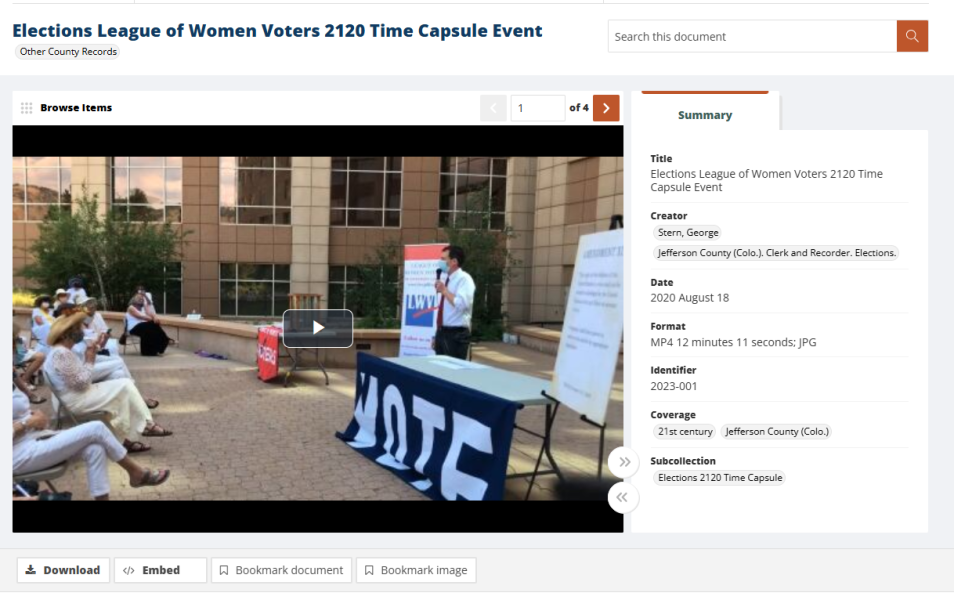
Audio and video files will display a player instead of the image viewer.
Click the 'Play’ button in the middle of the player to start playing the content. Once the content begins playing, a control bar becomes visible at the bottom of the player anytime a user hovers over it. Controls enable users to skip forward or backward 15 seconds, pause, adjust the volume, mute, view total duration as well as jump to any point in the content by timestamp, turn on closed captioning (if the audio or video file has been transcribed), adjust playback quality settings (video only), or view the content in full-screen.
Like in the image viewer, the arrows at the bottom right of the player expand or reduce the size of the AV player through options to toggle to full width or half width.
Browsing Records
Click 'Browse' in the navigation bar, which appears in the masthead, at the top of every page to access all available records.
Click the title or thumbnail from this list to navigate to your chosen record.
The 'Summary' tab provides a brief overview of the digitized item, including key fields, such as title, date, subject, and format, where relevant. The full metadata that appears beneath the viewer provides more details, such as descriptions and copyright information. Any metadata that appears within a gray bubble links to a list of all records cataloged with that term.
Hovering the cursor in the image viewer displays a menu with the following options in the top right of the viewing window:
- Zoom in or out
- Toggle full page view
- Rotate left or right
- Go home – resets the image to the default view
The dimensions of the image viewer can be toggled between full and half width using the arrows to the bottom right of the viewing window.
Click the “Download” button to open a pop-up window that allows you to save metadata and transcripts where available.
Select the "Embed" button to obtain a code to display the record elsewhere on another site using software such as an iFrame. Choose to include display of the Summary Metadata and/or Transcripts (where available), along with configuring the desired display image(s).
Bookmark the record for future reference in My Account. Learn more about these features in Using My Account.
Using the AV Player
Audio and video files will display a player instead of the image viewer.
Click the 'Play’ button in the middle of the player to start playing the content. Once the content begins playing, a control bar becomes visible at the bottom of the player anytime a user hovers over it. Controls enable users to skip forward or backward 15 seconds, pause, adjust the volume, mute, view total duration as well as jump to any point in the content by timestamp, turn on closed captioning (if the audio or video file has been transcribed), adjust playback quality settings (video only), or view the content in full-screen.
Like in the image viewer, the arrows at the bottom right of the player expand or reduce the size of the AV player through options to toggle to full width or half width.
Basic Keyword Search
In addition to the homepage, a search box can be found in the masthead on every page. Look for the magnifying glass icon with the rollover text 'Open search input.' Use this search box to perform a simple keyword search across all available records. Results include both metadata and any available full-text transcripts and are displayed as a list sorted by relevance.
To apply Boolean search terms, you must perform an Advanced Search.
Collection-specific search
To search within a specific collection, navigate to the collection page from one of the collection group's pages visible in the collections menu. Use the search box that appears to the right of the collection title and displays the text "Search [Specific Collection]".

Searching within a Record
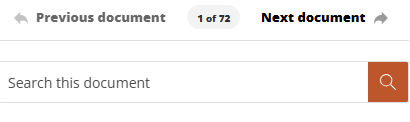
Using the search box that appears to the right of the title, you can search both the metadata and any available transcripts within a record. Results will display in the same tab below the record as they do when you navigate to a record from a sitewide search.
Advanced Search
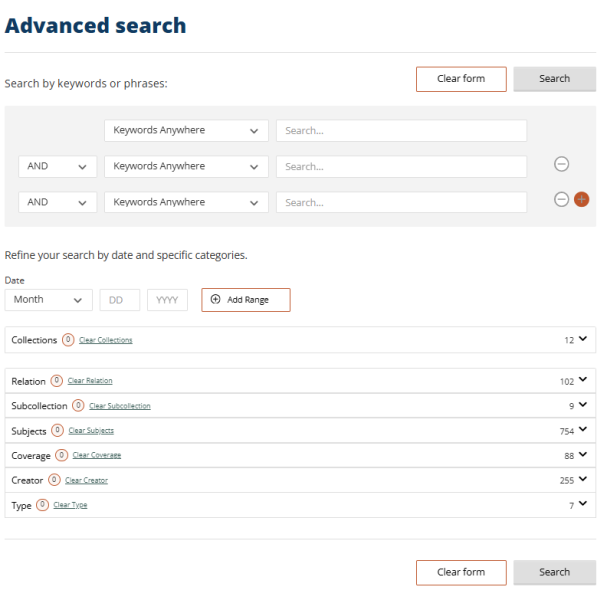
Access the Advanced Search from the navigation bar which appears in the masthead, at the top of every page.
You can perform a fielded search of any non-linked metadata from this page. In addition to these fields, Advanced Search allows users to add criteria such as date ranges and controlled vocabulary or collection filters at the outset of a search, rather than performing a keyword search that must then be refined.
Search for several keywords or phrases using the AND, OR, and NOT Boolean operators.
Apply any desired filters and selections will display in the search criteria box at the bottom of the page. Click the 'Search' button to run, or the 'Clear form' button to clear all search criteria and begin a new search.
Searches that have been run during the current session display on the right in the 'Previous Searches' box. Simply click the hyperlinked terms to rerun the search.
Click 'Search' and a list of results will display. Search criteria displays at the top of the page in the search criteria box, and from here the current search can also be saved to My Account. Learn more about the benefits of this feature in Using My Account.
Guide to Searching
Basic Keyword Search
In addition to the homepage, a search box can be found in the masthead on every page. Look for the magnifying glass icon with the rollover text 'Open search input.' Use this search box to perform a simple keyword search across all available records. Results include both metadata and any available full-text transcripts and are displayed as a list sorted by relevance.
To apply Boolean search terms, you must perform an Advanced Search.
Collection-specific search
To search within a specific collection, navigate to the collection page from one of the collection group's pages visible in the collections menu. Use the search box that appears to the right of the collection title and displays the text "Search [Specific Collection]".
Searching within a Record
Using the search box that appears to the right of the title, you can search both the metadata and any available transcripts within a record. Results will display in the same tab below the record as they do when you navigate to a record from a sitewide search.
Advanced Search
Access the Advanced Search from the navigation bar which appears in the masthead, at the top of every page.
You can perform a fielded search of any non-linked metadata from this page. In addition to these fields, Advanced Search allows users to add criteria such as date ranges and controlled vocabulary or collection filters at the outset of a search, rather than performing a keyword search that must then be refined.
Search for several keywords or phrases using the AND, OR, and NOT Boolean operators.
Apply any desired filters and selections will display in the search criteria box at the bottom of the page. Click the 'Search' button to run, or the 'Clear form' button to clear all search criteria and begin a new search.
Searches that have been run during the current session display on the right in the 'Previous Searches' box. Simply click the hyperlinked terms to rerun the search.
Click 'Search' and a list of results will display. Search criteria displays at the top of the page in the search criteria box, and from here the current search can also be saved to My Account. Learn more about the benefits of this feature in Using My Account.
By default, a site-wide search returns results with the desired term or phrase found either in the metadata and/or in any full-text transcript. To refine your results, try applying one or more filters.
- Search type – Displays when a user has arrived via a search (versus navigating via "Browse All"). De-select "Metadata" or "Full text" and click "Apply" to limit results.
- Date range – Supply as much detail as desired; only returns records with numerical dates
- Collections – Limits results to a particular digital collection
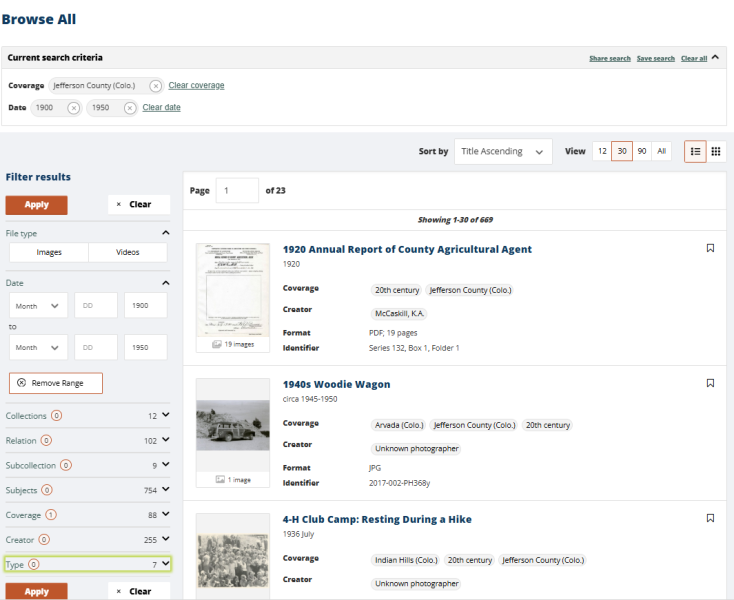
Controlled Vocabulary Filters
In addition, results can be filtered by the following Controlled Vocabulary fields: Relation, Subcollection, Subjects, Coverage, Creator and Type. These filters present a list of terms based on metadata. Click the arrow on the right to view the list of terms and make your selections. The number displayed beside the arrow indicates the number of available terms. The number displayed in the circle to the right of the filter name indicates the number of terms selected.
Once one or more terms are selected, be sure to click "Apply."
Refining Search Results
By default, a site-wide search returns results with the desired term or phrase found either in the metadata and/or in any full-text transcript. To refine your results, try applying one or more filters.
- Search type – Displays when a user has arrived via a search (versus navigating via "Browse All"). De-select "Metadata" or "Full text" and click "Apply" to limit results.
- Date range – Supply as much detail as desired; only returns records with numerical dates
- Collections – Limits results to a particular digital collection
Controlled Vocabulary Filters
In addition, results can be filtered by the following Controlled Vocabulary fields: Relation, Subcollection, Subjects, Coverage, Creator and Type. These filters present a list of terms based on metadata. Click the arrow on the right to view the list of terms and make your selections. The number displayed beside the arrow indicates the number of available terms. The number displayed in the circle to the right of the filter name indicates the number of terms selected.
Once one or more terms are selected, be sure to click "Apply."
What is My Account?
The My Account feature allows you to bookmark records that you may wish to view or reference in the future. You can also save searches to 'My Account' or share your search results.
The information below is designed to provide a step-by-step guide through use of both the Bookmark, Save Search, and Share Search functionalities of My Account.

The My Account feature is accessible through the person icon, located in the upper right-hand corner of the masthead.
Registration for My Account
First-time users can create an account by completing the free, online registration. Please note that accounts are managed by Adam Matthew Digital, not by [customer name]
After clicking “Register,” you will receive an email with a link to activate your account. This should be done at your earliest convenience as this link will expire 7 days after you submit your registration. You can update any of these details from the Profile page in your account.
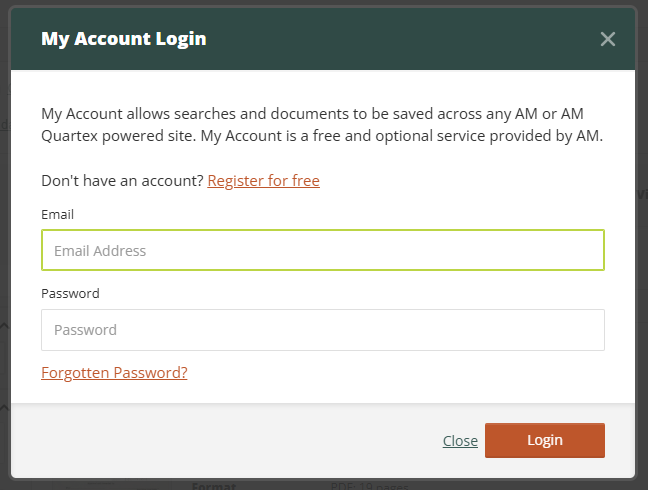
Bookmarking
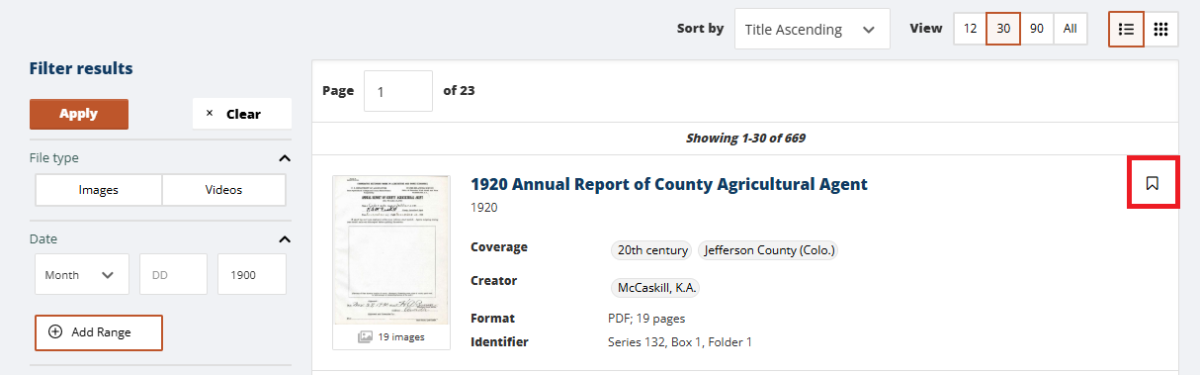
You can bookmark records directly from the Browse All or a search results list by simply clicking the bookmark icon relating to each record.
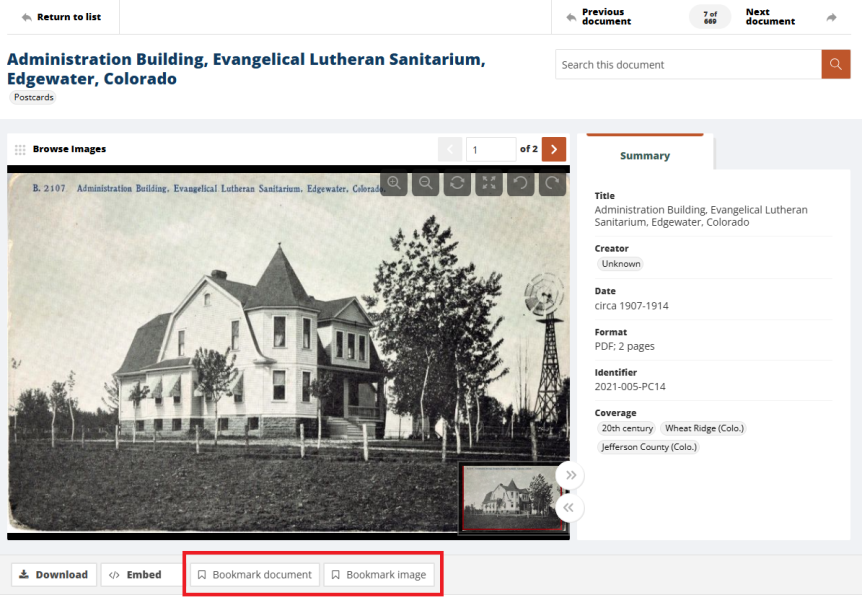
Alternatively, the same icon allows you to bookmark the record, or bookmark specific files within the digitized item when viewing the record. The Bookmark icon will be available to you directly below the image viewer in such instances.
Any Bookmarked records and files will be listed when you log in to My Account, listed there as documents and items. Clicking on a bookmarked record will open the record in a new page. Use the sidebar filters to reduce your list of bookmarks to show either complete records or individual items that you’ve bookmarked.
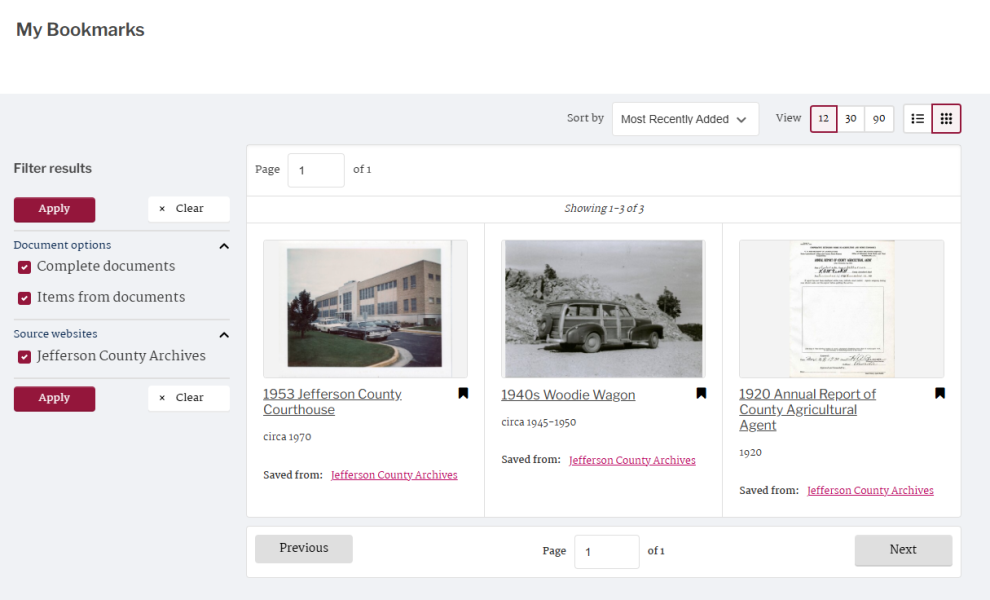
Within My Account, you can view your bookmarked records using a gallery-style format or for more information, select a list view.
Save and Share Search
Use the My Account 'SaveSearch' feature to record your search parameters and easily rerun your query at a later date. You can find the Save Search feature in the upper right-hand corner of any current search criteria box. This appears above an Assets List after a search is applied.

Saved Searches can then be accessed via My Account, providing a user has created an account (see details on how to do this above).
Similarly, My Account also provides a 'Share Search' function. At the top of the search results list, to the right of the search criteria box, a 'Share Search button' will be visible. Clicking on that button shows a Share Search pop-up, detailing a unique URL for that search list to enable collaborative working or research. For example, librarians could share a search with researchers, students could share a search with peers, or else teachers may find it useful to share list results with students when setting an essay on a set selection of materials.
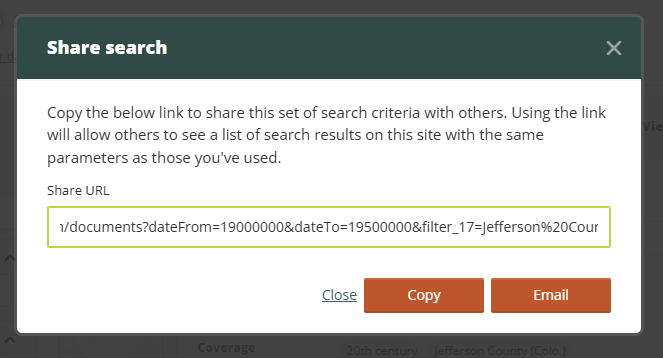
A pop-up offers users the option of copying a link to these results, or emailing them directly to anyone else. No account is required to use the Share Search feature.
For more information on My Accounts or any other Quartex feature, please contact info@quartexcollections.com.
Using My Account
What is My Account?
The My Account feature allows you to bookmark records that you may wish to view or reference in the future. You can also save searches to 'My Account' or share your search results.
The information below is designed to provide a step-by-step guide through use of both the Bookmark, Save Search, and Share Search functionalities of My Account.
The My Account feature is accessible through the person icon, located in the upper right-hand corner of the masthead.
Registration for My Account
First-time users can create an account by completing the free, online registration. Please note that accounts are managed by Adam Matthew Digital, not by [customer name]
After clicking “Register,” you will receive an email with a link to activate your account. This should be done at your earliest convenience as this link will expire 7 days after you submit your registration. You can update any of these details from the Profile page in your account.
Bookmarking
You can bookmark records directly from the Browse All or a search results list by simply clicking the bookmark icon relating to each record.
Alternatively, the same icon allows you to bookmark the record, or bookmark specific files within the digitized item when viewing the record. The Bookmark icon will be available to you directly below the image viewer in such instances.
Any Bookmarked records and files will be listed when you log in to My Account, listed there as documents and items. Clicking on a bookmarked record will open the record in a new page. Use the sidebar filters to reduce your list of bookmarks to show either complete records or individual items that you’ve bookmarked.
Within My Account, you can view your bookmarked records using a gallery-style format or for more information, select a list view.
Save and Share Search
Use the My Account 'SaveSearch' feature to record your search parameters and easily rerun your query at a later date. You can find the Save Search feature in the upper right-hand corner of any current search criteria box. This appears above an Assets List after a search is applied.
Saved Searches can then be accessed via My Account, providing a user has created an account (see details on how to do this above).
Similarly, My Account also provides a 'Share Search' function. At the top of the search results list, to the right of the search criteria box, a 'Share Search button' will be visible. Clicking on that button shows a Share Search pop-up, detailing a unique URL for that search list to enable collaborative working or research. For example, librarians could share a search with researchers, students could share a search with peers, or else teachers may find it useful to share list results with students when setting an essay on a set selection of materials.
A pop-up offers users the option of copying a link to these results, or emailing them directly to anyone else. No account is required to use the Share Search feature.
For more information on My Accounts or any other Quartex feature, please contact info@quartexcollections.com.